


Your next trip starts here.
Your cart is empty. Choose a destination to get started.
 Browse destinations
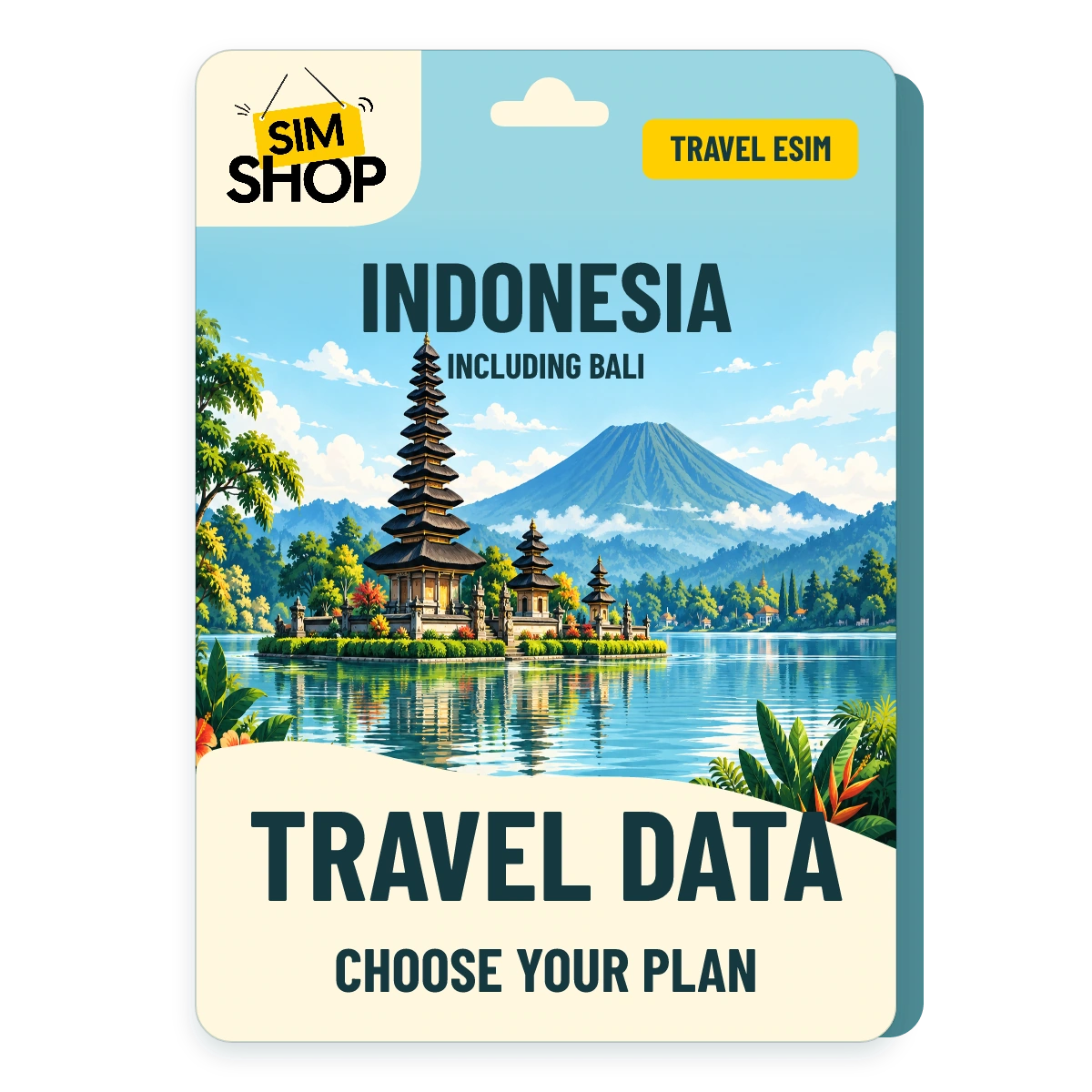
Unlimited data. Choose your trip length.
Choose an allowance above. You can change it anytime before buying.
Compare the selected plan’s speed, hotspot and fair-use details.
In stock
Check the allowance, speed and validity on your chosen plan.
| Coverage | 🇮🇩 Indonesia |
|---|---|
| Networks | Networks vary by plan. Choose a plan to see its supported networks. |
| Data type | Standard data, Unlimited data, Daily high-speed |
| Validity | 1 day, 2 days, 3 days, 4 days, 5 days, 6 days, 7 days, 8 days, 9 days, 10 days, 12 days, 15 days, 20 days, 25 days, 30 days |
| Speed | 4G/5G |
| Hotspot | Yes |
| When it starts | First connection to a supported local network |
Your plan, your setup and a little help along the way.
Choose an allowance above. We’ll show its networks, hotspot details and what happens when your data is used.
Choose a planLand first.
Then install.
We’ll email your setup details when your eSIM is ready. Save the email for your arrival.
Wait until you have landed before using Quick Install, scanning the QR code, entering the manual code or activating the eSIM.
Join the airport’s passenger Wi-Fi and complete its sign-in screen. Open a webpage to check you’re connected.
Then open your SIM Shop setup email and follow the instructions to install and activate your eSIM.
Wi-Fi not working? Wait for hotel Wi-Fi or another steady, trusted connection before installing.
Check that your phone supports eSIM and is network unlocked before buying.
Arriving at Denpasar for Canggu, Seminyak, Ubud or Uluwatu? Save your villa address and pickup instructions before leaving Wi-Fi. If you are taking a boat from Sanur to Nusa Lembongan or Nusa Penida, keep the ticket and arrival directions offline as well.
Messages and calls in apps use your data. Standard calls, SMS and a local number need a separate mobile service.
Choose your trip length, then compare the available unlimited plans. Check the selected plan’s speed, hotspot allowance, any reduced-speed terms and start window.
Buy Indonesia eSIM data before you travel. Pick the data amount that fits your trip and save the setup email, but do not tap quick install, scan the QR code, enter the manual code or activate the eSIM before departure.
Arriving at Denpasar for Canggu, Seminyak, Ubud or Uluwatu? Save your villa address and pickup instructions before leaving Wi-Fi. If you are taking a boat from Sanur to Nusa Lembongan or Nusa Penida, keep the ticket and arrival directions offline as well.
Lombok and the Gili Islands are separate destinations within Indonesia. Check the selected plan’s supported network for each island on your itinerary. Your data allowance does not reset at an island change, and Indonesia coverage does not guarantee a connection on ferries, remote beaches or every road. For a trip focused on Bali, our Bali eSIM page compares the plan types.
Check hotspot permission and any sharing limit on the exact offer before relying on it for a laptop or another phone. Do not assume an unlimited allowance means unlimited tethering. A Singapore stopover needs its own coverage check; Indonesia in the plan name does not include Singapore.
Daily high-speed options are day passes with a set high-speed amount each day. After that daily amount is used, speeds may reduce until the next daily reset.
These plans are data-only unless a product option says otherwise. They do not include a local phone number for standard calls or SMS. Check compatibility, coverage, validity and hotspot needs before purchase.
Recommended setup timing: buy before you fly, then install only after you land. Join the airport’s free passenger Wi-Fi where offered, complete its sign-in page and open a normal webpage to prove it works. If it is unavailable or unstable, wait for hotel Wi-Fi or another steady trusted connection. Open your SIM Shop setup email and install only when that Wi-Fi test works.
From Bali bookings and rides to an Indonesia itinerary with more stops, start with your trip length. Check the selected plan’s coverage for the places you will visit.
These plans have no total data cap or set usage threshold. The stated typical roaming speed is 10–20Mbps. It is not a guaranteed speed; your network, location and phone affect the connection.
The SIM Shop places no separate cap on hotspot use, but the supplier has not confirmed support, network restrictions or connected-device limits. Contact us before buying if you need to share data.
Day passes have a stated high-speed allowance each day, with their own reset and reduced-speed terms. You’ll find those alongside fixed data on the regular Indonesia eSIM page.
Choose a plan long enough for your trip, check its start window and use Phone Check to confirm eSIM support. Save your setup email before leaving. Land, join airport Wi-Fi, then follow the setup email. If airport Wi-Fi is unavailable, use hotel Wi-Fi or another steady trusted connection.
Read our Indonesia unlimited guide or compare Indonesia data plans and day passes.
Compare eSIMs that cover Indonesia and your next stops.
Singapore, Malaysia, Vietnam, Thailand and Indonesia eSIM
Asia 7 Areas eSIM
Asia 12 Areas eSIM
Check included destinations, data and validity before choosing.



We will guide you through one quick check at a time without leaving this plan.
Choose the exact model. We will ask only the checks that model still needs.
Best on the phone you will travel with. iPhone and some browsers may only reveal the phone family.
No IMEI or EID number is needed here. Keep private device numbers private.
iPhone: Settings > Cellular, Mobile, Mobile Service or Mobile Data > Set Up Mobile or Add eSIM. Pixel: Settings > Network & internet > SIMs > Add SIM > Set up an eSIM. Galaxy: Settings > Connections > SIM manager > Add eSIM. Do not tap through or start setup before departure.
iPhone: Settings > General > About. Pixel: Settings > About phone > SIM status. Galaxy: Settings > About phone > Status information. Seeing an EID can help, but it does not confirm compatibility on its own. Never type or send the number here.
This means it is not locked to one mobile provider. It is different from your screen passcode.
Model list + exceptionsWe check known support and important purchase-location differences.
No private device numbersWe do not ask for your IMEI, EID or personal phone data.
Still unsure?Ask a real human before buying.